> ## Documentation Index
> Fetch the complete documentation index at: https://docs-api.incarts.co/llms.txt
> Use this file to discover all available pages before exploring further.
# Get API access
> Create API keys and understand project access
Create an API key in the [Incarts dashboard](https://app.incarts.co/) before calling authenticated
endpoints. Create an account or sign in, then open the API key settings for your organization.
The key identifies your organization and authorizes requests for the projects and API features
included with that key.
## What you use
| Value | Where you use it | What it controls |
| ----------- | --------------------------------------- | ---------------------------------------------------------------------------------------------------------------------------------------- |
| `projectId` | Request bodies such as `POST /v1/links` | The Incarts project that owns created shoppable links, QR codes, reporting, and future campaign records. |
| API key | `X-Incarts-API-Key` header | Authenticates your server. |
| Scopes | Attached to your API key | Allows specific actions such as creating shoppable links (`links:write`), reading links (`links:read`), or retailer-specific operations. |
The API key must be allowed to access the `projectId` in your request. A key can be limited to
selected projects or allowed across all projects in your organization. If the key is valid but does
not have access to the requested project or scope, the API returns `403`.
## Create an API key
1. Create an account or sign in to the [Incarts dashboard](https://app.incarts.co/).
2. Open `Settings` > `API Keys`.
3. Create a key for your integration.
4. Select the project access and scopes this key should use.
5. Copy the API key when it is shown. Incarts only shows the full key once.
6. Store the key server-side and send it in the `X-Incarts-API-Key` header.
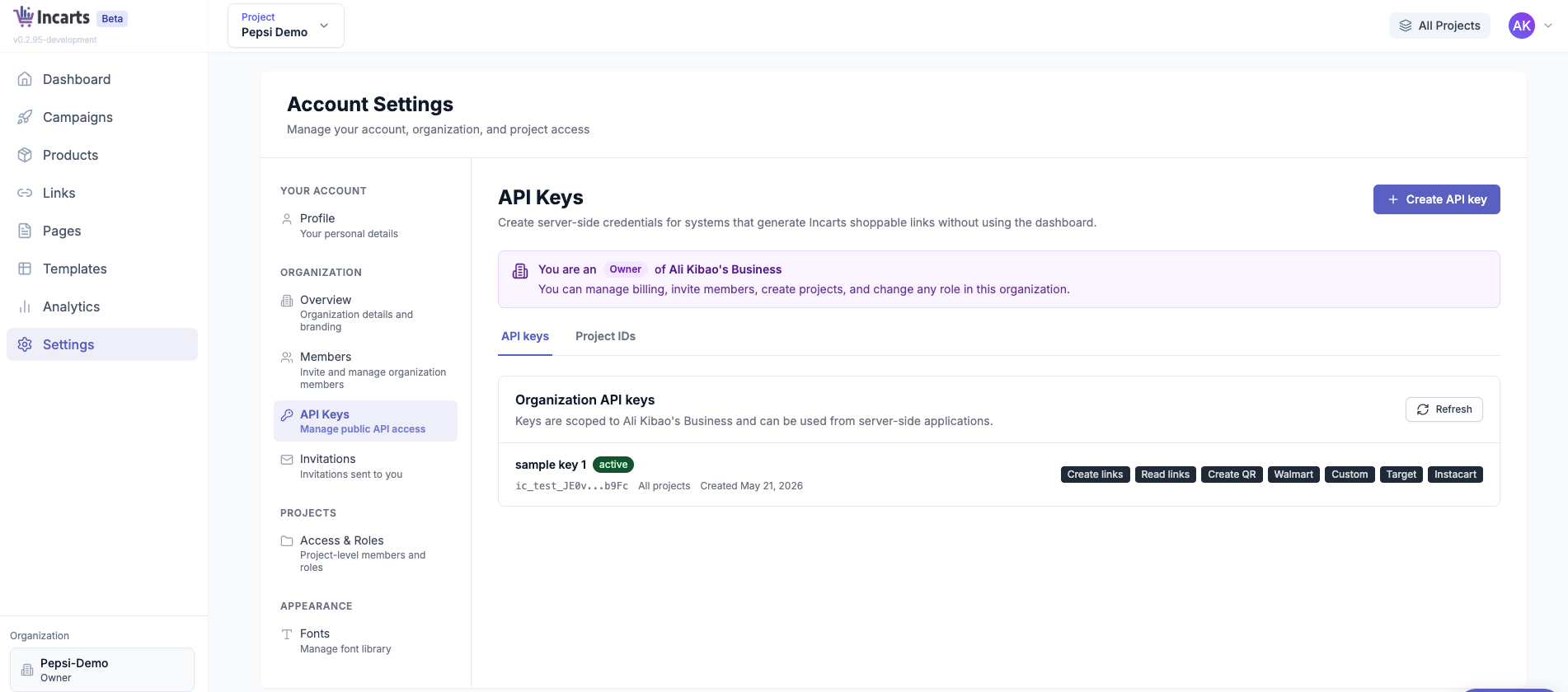 If you do not see `API Keys`, ask an organization owner or administrator to create the key.
Treat API keys like passwords. Do not expose them in browser code, share them across customers, or
commit them to source control.
## Example access package
A Walmart-only link generation integration typically uses:
```text theme={null}
projectId: proj_abc123
apiKey: ic_live_...
scopes:
links:write
retailers:walmart
```
Use that `projectId` in each create-link request:
```json theme={null}
{
"projectId": "proj_abc123",
"name": "Summer grilling basket",
"retailer": "walmart",
"intent": "add_to_cart",
"products": [
{
"retailerProductId": "550098461",
"quantity": 1
}
]
}
```
## Self-serve status
Organization owners and administrators can create API keys in the dashboard. Public API endpoints
for creating projects, listing projects, rotating keys, and revoking keys are not available yet.
If you do not see `API Keys`, ask an organization owner or administrator to create the key.
Treat API keys like passwords. Do not expose them in browser code, share them across customers, or
commit them to source control.
## Example access package
A Walmart-only link generation integration typically uses:
```text theme={null}
projectId: proj_abc123
apiKey: ic_live_...
scopes:
links:write
retailers:walmart
```
Use that `projectId` in each create-link request:
```json theme={null}
{
"projectId": "proj_abc123",
"name": "Summer grilling basket",
"retailer": "walmart",
"intent": "add_to_cart",
"products": [
{
"retailerProductId": "550098461",
"quantity": 1
}
]
}
```
## Self-serve status
Organization owners and administrators can create API keys in the dashboard. Public API endpoints
for creating projects, listing projects, rotating keys, and revoking keys are not available yet.